How to Set Up a Live Stream Overlay for Your Cricket League Auction
You have seen it at the IPL. The camera cuts to the auction table, a player’s name appears on screen, the bid counter ticks upward, and the whole country watches in real time as franchises fight over a single fast bowler.
That experience — the overlay, the live data, the broadcast production — is no longer exclusive to televised mega-auctions. Any cricket league in India running a live player auction online can now have exactly the same capability, using free streaming software and a platform like Online Player Auction.
This guide explains exactly how it works, what you need, and how to set it up — even if you have never touched streaming software before.
What Is a Cricket Auction Overlay and Why Does It Matter

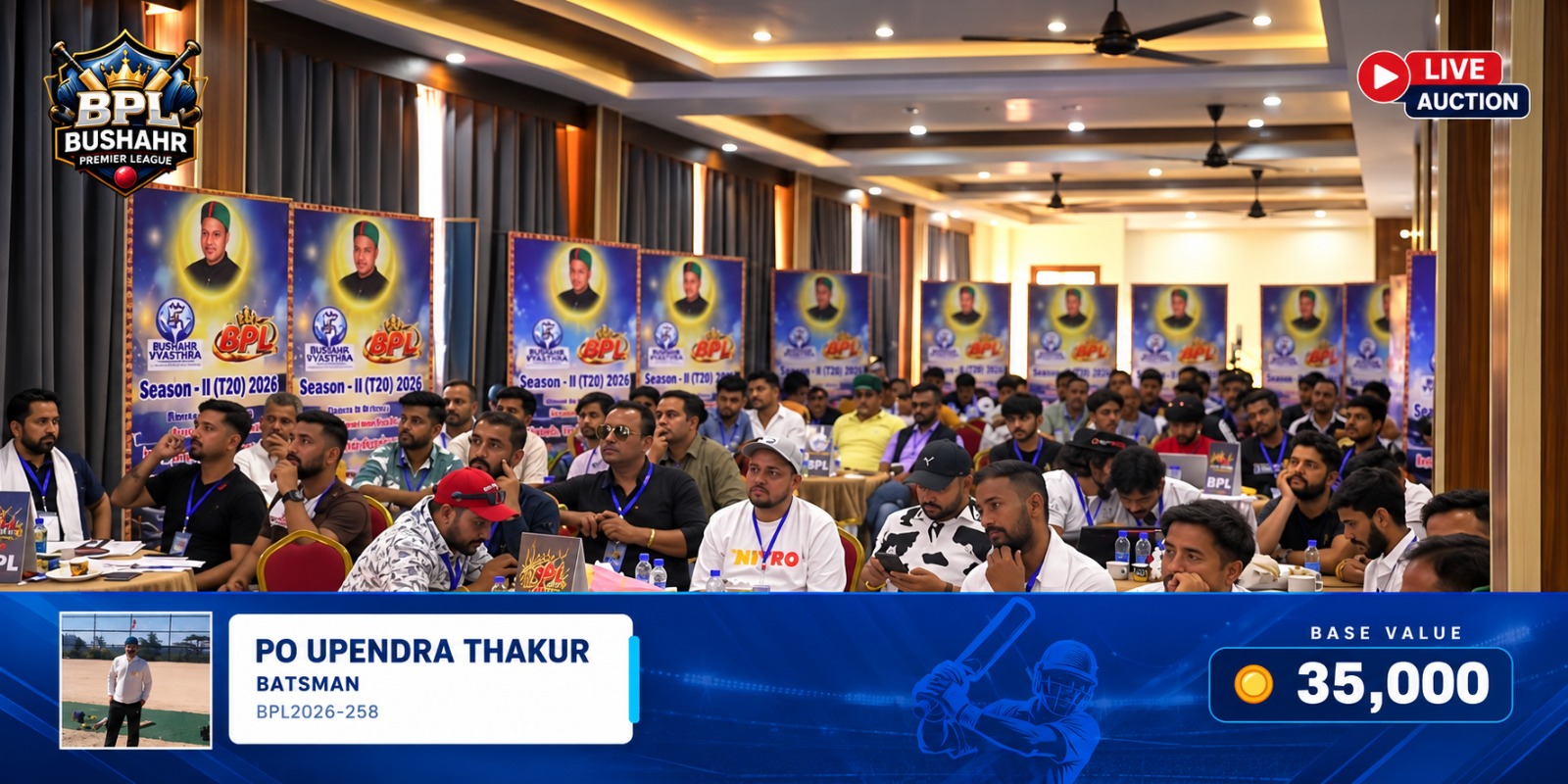
A broadcast overlay is a layer of live information that sits on top of your video feed during a live stream. During a cricket player auction, it typically shows:
-
The current player’s name and playing role
-
Their base price
-
The current highest bid amount
-
The team currently leading the bid
-
Your league’s branding and logo
Without an overlay, your live stream is just a camera pointed at a room. With one, it becomes a broadcast — something an audience can follow, react to, and share. The overlay is what transforms your auction from a local event into a watchable production.
For leagues trying to build a following, attract sponsors, or simply give their auction the weight it deserves, the overlay is the single highest-impact upgrade you can make.
What You Need to Get Started
Before you set anything up, here is what you need:
Essential:
-
A laptop or desktop computer (Windows or Mac)
-
A stable internet connection — wired is strongly preferred over WiFi
-
OBS Studio (free) or vMix (paid, more advanced) — your streaming software
-
A YouTube channel or Facebook page to stream to
-
An active auction set up on onlineplayerauction.in
Optional but recommended:
-
A second monitor — one for the auction dashboard, one for OBS
-
A webcam or camera for an auctioneer shot
-
A microphone for commentary
That is genuinely the entire setup. No hardware encoder. No broadcast van. No production crew.
Understanding How the Overlay Works
Online Player Auction generates a unique browser source URL for your overlay. This URL is a live webpage that displays the current auction data — player name, bid amount, leading team — and updates automatically as bids are placed in the auction dashboard.
In OBS or vMix, you add this URL as a browser source layer on top of your video feed. The streaming software pulls the page in real time and composites it onto your stream. As your auctioneer moves through players and bids are placed, the overlay updates instantly — with no manual input from the broadcast operator.
Think of it as a webpage that lives invisibly over your video, always showing exactly what is happening in the auction at that precise moment.
Step-by-Step Setup with OBS Studio
OBS Studio is free, widely used, and works on Windows, Mac, and Linux. Here is how to add the auction overlay:
Step 1 — Download and install OBS Studio
Go to obsproject.com and download the version for your operating system. Installation is straightforward and takes under five minutes.
Step 2 — Set up your base scene
Open OBS and create a new Scene. Add your video source — this could be a webcam, a screen capture, or a camera feed showing the auctioneer. This is the base layer of your stream.
Step 3 — Get your overlay URL from Online Player Auction
Log into your auction dashboard on Online Player Auction. Navigate to the Broadcast section and copy your unique overlay URL. This URL is live the moment your auction is active.
Step 4 — Add the overlay as a Browser Source
In OBS, click the + button under Sources and select Browser. Paste your overlay URL into the URL field. Set the width to 1920 and height to 1080 (or match your stream resolution). Check the box for “Shutdown source when not visible” and click OK.
Step 5 — Position the overlay
The overlay will appear on your canvas. Drag it to position — typically along the bottom third of the screen, where it does not obstruct the main video. Most auction overlays are designed as lower-third banners and will sit naturally at the bottom of the frame.
Step 6 — Connect to YouTube or Facebook Live
In OBS, go to Settings → Stream. Select YouTube or Facebook Live as your service, paste in your stream key from your YouTube Studio or Facebook Live Producer, and click OK.
Step 7 — Go live
Click Start Streaming in OBS. Your stream begins, your overlay is live, and from this point everything updates automatically as your auction progresses.
Total setup time once you have your overlay URL: approximately ten minutes.
Setting Up with vMix
vMix is a more advanced streaming application used by professional broadcasters. If your league has a dedicated streaming operator or wants a more production-grade setup, vMix offers greater control over multiple camera inputs, transitions, and graphics.
Adding the overlay in vMix follows a similar process:
-
Open vMix and create a new input
-
Select Web Browser as the input type
-
Paste your Online Player Auction overlay URL
-
Set the resolution to match your output (1920x1080 recommended)
-
Add the browser input as an overlay layer in your production
-
Use vMix’s layer controls to position it on the lower third of your video
vMix also allows you to set overlay transitions — so the auction data fades in when a new player is announced and fades out when they are sold. For leagues with a dedicated streaming team, this level of polish is achievable with minimal additional effort.
Tips for a Professional Looking Stream
Lock your internet connection. Nothing kills a live stream faster than a dropped connection mid-auction. Use a wired ethernet connection for the streaming laptop wherever possible. If WiFi is unavoidable, position as close to the router as possible and keep other devices off the network.
Test the overlay before the event. Run a full dummy auction in the platform and confirm the overlay is pulling data correctly in OBS. Check that player names, bid amounts, and team names are all displaying and updating as expected. Do this the day before, not five minutes before the stream starts.
Use a second screen. The auctioneer or a co-host should have the auction dashboard visible on a separate monitor so they can see what is happening on the platform in real time. Running the dashboard and OBS on the same screen leads to a cluttered, stressful workflow during the live event.
Brief someone specifically on the stream. During the auction, the auctioneer has enough to manage. Assign one person — a co-host or a team member — to watch the stream, monitor the chat, and handle any broadcast-side issues. Split the responsibilities before the event begins.
Add a countdown before going live. Start your stream five to ten minutes before the auction begins. Show a holding screen with your league branding and a countdown. This gives late viewers time to tune in and builds anticipation before the first player is announced.
Keep the overlay design clean. Online Player Auction’s overlay is designed to be readable without being visually noisy. Resist the temptation to add too many additional graphic elements on top of it. Clean information, clearly presented, is always more professional than a cluttered screen.
What Your Audience Sees

When your stream is live and the overlay is running, this is the experience for anyone watching:
The auctioneer announces the next player. The overlay at the bottom of the screen shows the player’s name, playing category, and base price. Bidding opens and the current bid counter updates in real time as owners place bids — the audience watches the number climb. The leading team’s name is always visible. When the player is sold, the overlay updates to show the final price and the winning franchise before the next player loads.
For an audience that knows the players and teams involved, this is genuinely compelling viewing. For sponsors considering your league as a platform, it is a demonstration of professionalism that a WhatsApp group recording simply cannot offer.
Common Problems and How to Fix Them
Overlay is blank or not loading
Confirm your auction is live and active on the platform. The overlay URL only pulls data when an auction session is running. Also check that OBS has permission to access the internet through your firewall settings.
Overlay is showing but not updating
Refresh the browser source in OBS by right-clicking the source and selecting Interact, then pressing F5. Check your internet connection — a slow or intermittent connection can cause the overlay to lag behind the live data.
Stream is lagging or dropping frames
Reduce your OBS output bitrate. For a standard cricket auction stream, a bitrate of 3000–4500 kbps is sufficient. Also close any background applications on the streaming laptop that may be consuming bandwidth or processing power.
Overlay text is too small or too large
Resize the browser source in OBS by holding Alt while dragging the edge of the source. This crops the overlay rather than stretching it, maintaining the correct proportions.
The Result
A cricket league in Himachal Pradesh that streams its player auction live — with a clean overlay showing live bids, player profiles, and team names — is not just running an auction. It is creating a piece of content that people will share, rewatch, and talk about long after the event is over.
It is also the kind of production that attracts sponsors. A business considering sponsoring your league wants to know their brand will be visible somewhere meaningful. A professionally produced live auction stream — watched live by hundreds of fans — is exactly that.
The technology is free. The setup takes under thirty minutes. The impact is immediate.
Ready to Add a Live Overlay to Your Auction?
Online Player Auction generates your broadcast overlay URL automatically as part of every plan. No additional setup, no technical configuration — just copy the URL, add it to OBS or vMix, and your auction is broadcast-ready.
→ Set Up Your Auction at https://onlineplayerauction.in/